PRACTICAL GUIDE TO VERIFYING YOUR BUSINESS AGAINST THE DPP REGISTRY
How to verify your business in the DPP Registry
Is the company required to register digital product passports in the EU? This guide explains how to register and verify a legal entity in the EU’s DPP registry using a qualified electronic seal (QSeal). We walk you through the process step by step — from EU Login to becoming an approved entity.
Norwegian QTSP
QSeal Certified
Support 8 a.m. – 5 p.m. →
Companies are verified using QSeal
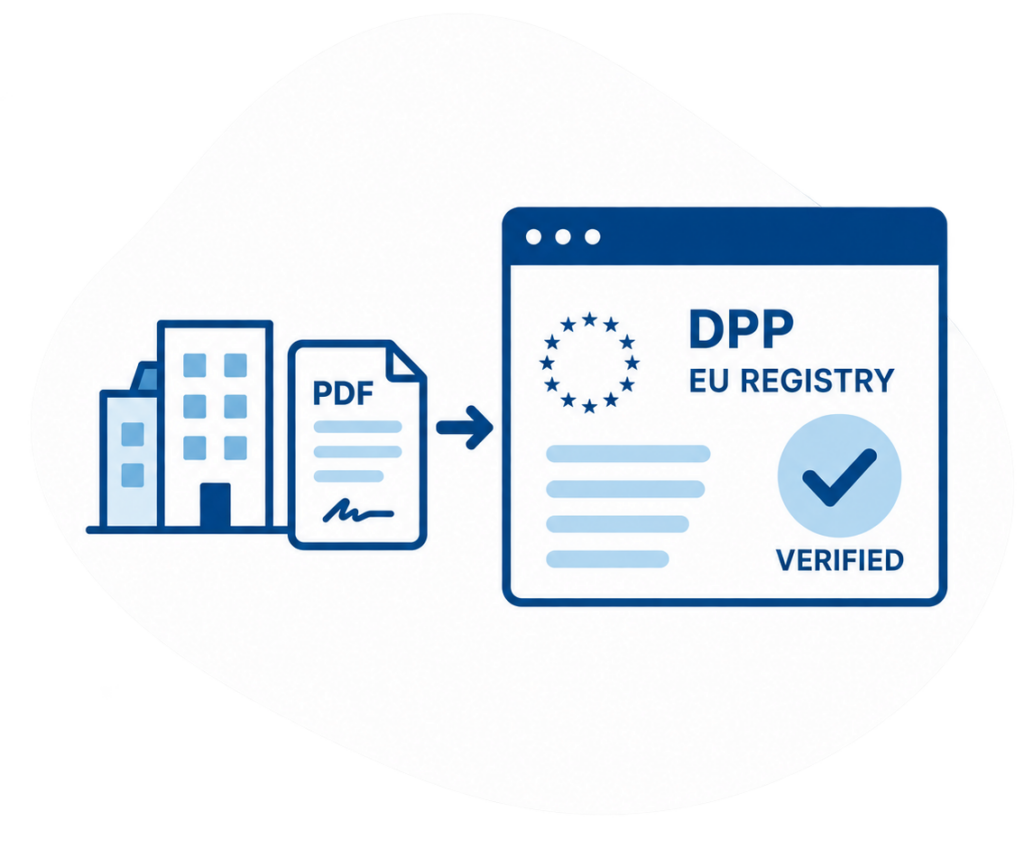
In the DPP Registry’s PDF-based verification process, companies and other legal entities use a qualified electronic seal (QSeal). Individuals acting on their own behalf use a qualified electronic signature (QES) instead.
Order a qualified eSegl from Commfides →
Here's what you'll need before you get started
EU Login
To access the DPP registry, log in with EU Login. If you don’t have an account, you can easily create one for free.
Company Information
Have the company’s legal name, registered address, country of registration, and registration identifier on hand.
Qualified eSeal
Companies need a Qualified e-Seal (QSeal) to verify their identity in the DPP registry.
Order a qualified e-Seal here.
Company Representative
Provide the name and email address of a person who can represent the business, such as someone with signing authority or power of attorney.
Would you like to read more first about why the DPP registry requires business verification?
Read about eSeal for DPP →
Here's how to enter the registration identifier when ordering an eSeal
The information in the eSeal must be identical to the information you use in the DPP registry. Enter the business’s registration identifier exactly as it appears in the business registry. Commfides uses NTR as the identifier type in the eSeal certificate and adds the correct country code when the certificate is issued. Commfides adds the identifier type and country code when the eSeal certificate is issued.
- NTR = identifier type
- DE = country code
- DED2601V.HRB12345 = the business’sregistration identifier
The information you enter in the DPP registry must match the information in the eSeal certificate.
Example – German Company
Please specify in your order:DED2601V.HRB12345*
Appears in the eSeal certificate:NTRDE-DED2601V.HRB12345*
Commfides adds the NTR and the country code.
*Fictitious example based on the ETSI format.
PRACTICAL GUIDE TO VERIFIED BUSINESSES
How to verify your business — Step by step

Sign in with EU Login
Go to the DPP registry and log in with EU Login.
If you don’t have an account, you’ll need to create one first.

Register your business
Select “Enroll New Organization” and then “Legal Person” for a company or organization. Enter the business details and the contact information for the person to contact regarding compliance questions.

Name a representative for the business
Enter the name and email address of the person authorized to represent the business and sign the PDF declaration.

Download the PDF statement
Click “Request Declaration” and then “Continue.” The European Commission generates a PDF declaration that has already been sealed by the Commission. Once it is ready, click “Download PDF.”

Seal the PDF with a qualified eSeal (QSeal)
Companies and organizations must seal the PDF declaration with a qualified eSeal (QSeal). The eSeal confirms the entity from which the document originates and that its content has not been altered.
Commfides provides the eSeal on a QSCD smart card. A certificate that is simply installed as a standard .p12/.pfx file on a PC is not sufficient.
Are you in the need of an Qualified eSeal?
See the price and shipping details for Commfide’s QSeal below.

Check the eSeal before uploading
Verify the sealed PDF using the European Commission’s DSS Validator. For companies, the “Qualification” field must display “QESeal,” and the signature format must be PAdES Baseline B, T, LT, or LTA. Commfide’s QSeal is a qualified eSeal on the QSCD and meets the requirement for a qualified eSeal in the DPP verification.
Check the PDF using the European Commission’s DSS Validator →
The PDF must contain two seals: the European Commission’s original seal and the company’s eSeal.

Upload and verify
Upload the same PDF that you downloaded from the DPP registry, now with your company’s eSeal added.
Click “Verify your Organization” and then “Continue.”

Check the result
The status is displayed in the Activity Dashboard:
PROCESSING – The verification is still being processed. No final decision has been made yet.
SUCCESS – The business has been verified, and the registration features will become available.
FAILURE – The verification was rejected. An error report is generated showing what needs to be corrected.
If there is a FAILURE, you can click “View Details” to see the error report. Once the business has been approved, the user who completed the registration becomes the administrator for the business in the DPP registry.
Check this before you upload

Same legal name
The legal name on the certificate must match the name registered in the DPP registry.

Correct country and identifier
The country and organization number must match the registration.

Original PDF without changes
Do not modify the PDF. Only add your company's qualified eSeal.

Certified PAdES
The PDF must be signed using PAdES Baseline 8, T, LT, or LTA.

COMMON ERRORS DURING VERIFICATION
If the verification fails
If the verification is rejected, it usually means that one or more pieces of information or technical checks are incorrect.
Here’s how to proceed:
- Open “View Details” in the Activity Dashboard
- See which check failed
- Correct the information or the PDF and try again
- If the error involves the eSeal, please contact Commfides for assistance
A rejection does not mean that you have to start the entire process over again.
First, check which inspection was not approved.
DIGITAL PRODUCT PASSPORT
What happens after approval?
Once the business has been verified, the user who completed the registration becomes the administrator for the business in the DPP registry. You will then have access to the registration functions available for the company and the relevant product group.
The complete product data is not stored in the DPP registry, but rather with the company or a DPP service provider.
DO YOU NEED HELP?
We guide your business safely through the ordering process
Do you have questions about business validation, foreign companies, certificate content, or how to seal a PDF? Please contact us by phone or email. We are open on weekdays from 08.00 – 17.00.
FAQ
Frequently Asked Questions About DPP and Qualified eSeals
Brief answers based on the European Commission’s DPP Registry User Guide for Economic Operators.
Yes, when you need to verify a legal entity using the DPP Registry’s PDF declaration. Commfides provides the qualified eSeal you need and helps you get started. You use the eSeal to seal the declaration and upload it to the registry for verification.
QSeal is a qualified electronic seal for businesses and other legal entities. It verifies which business the document originates from.
QES is a qualified electronic signature for individuals. In the DPP registry’s PDF-based verification process, companies and organizations use QSeal, while individuals acting on their own behalf use QES.
No. For companies, the PDF declaration must be sealed with a qualified electronic seal (QSeal). An Enterprise certificate or an standard eSeal that is not qualified does not meet the requirements of this verification process.
No. A qualified certificate installed as a standard software file (.p12/.pfx) is not sufficient. To create a qualified eSeal, the certificate must be used with an approved secure solution, such as a QSCD smart card or a qualified remote signing service.
Commfides provides QSeal on QSCD smart cards.
The legal business name, country of registration, and registration identifier in the DPP registry must match the information in the eSeal certificate. For legal entities, the DPP registry verifies, among other things, the fields organizationName, countryName, and organizationIdentifier.
When placing an order with Commfides, please provide your company’s registration identifier as it appears in the business registry. Commfides will then add the NTR and country code to the certificate.
Example – German company:
- Please provide the following when placing your order:
DED2601V.HRB12345 - Appears on the certificate:
NTRDE-DED2601V.HRB12345
When registering your business in the DPP registry, select NTR as the identifier type and use the same registration identifier that was provided when placing the order. The EU guide explicitly states that the identifier in the DPP must fully match the corresponding value in the certificate.
The identifier in the DPP registry must match the identifier in the eSeal certificate. Commfides typically uses NTR as the identifier type for DPP eSeal. If you are unsure which value to use, please contact us before registering your business in the DPP registry.
No. In the DPP registry’s PDF-based verification process, the qualified eSeal (QSeal) is used to verify the business. Once the business has been approved, the eSeal is not reused for each routine registration of a digital product passport.
Open the Activity Dashboard in the DPP registry and select “View Details ” for the rejected verification. There you will find an error report explaining what was not approved.
Correct the error and run the verification again. Common causes include an incorrect business name or identifier, changes to the PDF, an incorrect eSeal type, or an incorrect PAdES format. If you have QSeal from Commfides, our support team can help you interpret the error message and determine what needs to be corrected.
In PDF-based verification, the eSeal must be embedded in the PDF declaration as PAdES Baseline B, T, LT, or LTA. Separate signature files and other document formats are not accepted.
Commfide’s QSeal on QSCD smart cards can be used for this type of qualified PDF sealing. When the PDF is sealed with the correct configuration, the eSeal can be embedded in an approved PAdES format.
Before uploading, you can check the results using the European Commission’s DSS Validator.
Yes. Customer support is included in the price and covers assistance with installation, the initial sealing of the DPP declaration, and troubleshooting if the DPP registry rejects the document.
If you’re having trouble, we’ll help you investigate the error message and figure out what needs to be corrected. You won’t be charged extra for this assistance. The actual inspection and approval of the business are carried out by the DPP Registry.
Yes, for the seal itself. Once the card reader and necessary software are installed, you can use the smart card locally without having to log in to a separate seal portal for each seal.
This reduces the reliance on the availability of such a portal.
No. The Commfides package includes unlimited use of the certificate during the contract period, a smart card, a card reader, the necessary middleware, and customer support. This ensures predictable costs without any per-seal fees to Commfides.
You’ll need a Windows PC. The DPP declaration can be signed in Adobe Acrobat Reader without a paid Adobe subscription.
Last updated: October 2026
This guide is based on the European Commission’s DPP Registry User Guide for Economic Operators, version 1.03, published on September 16, 2026.
PRIMARY SOURCES
Read more on the European Commission's website
DO YOU NEED HELP?
Ready to verify your business in the DPP registry?
Order a qualified eSeal from Commfides, or contact us if you have any questions.


